How to Set Up Alexa with Third-Party Apps: A Complete Guide for 2025
Introduction
Amazon Alexa has become the cornerstone of smart home automation, offering seamless control over devices, services, and routines. As Alexa’s ecosystem expands, integrating third-party apps is essential for unlocking advanced functionality. Whether you want to connect smart lights, music services, or productivity tools, this guide provides everything you need to set up Alexa with third-party apps efficiently and securely.
Why Connect Alexa to Third-Party Apps?
- Enhanced Functionality: Control smart home devices, stream music, and automate daily routines.
- Personalized Experiences: Tailor Alexa’s responses and actions to suit your lifestyle.
- Centralized Automation: Manage multiple platforms and devices from a single voice assistant.
- Hands-Free Convenience: Use voice commands to interact with apps and devices.
Step-by-Step: Connecting Alexa to Third-Party Apps
1. Download and Set Up the Alexa App
Begin by downloading the official Alexa app for your smartphone or tablet. The app is available on iOS and Android. If you’re outside the US, you may need to adjust your app store region, but you do not need third-party APKs or unofficial sources[3]. Open the app, sign in with your Amazon credentials, and follow the prompts to register your Echo or Alexa-enabled device[1][11].
2. Connect Alexa to Wi-Fi
Ensure your Alexa device is connected to a stable Wi-Fi network. Use the app’s Devices tab to monitor connectivity and troubleshoot any issues[1].
3. Enable Third-Party Skills and Services
- Navigate to the More menu in the Alexa app.
- Select Skills & Games to browse or search for third-party apps (known as Alexa Skills).
- Tap Enable to add the skill to your account.
- Follow any additional authentication steps required by the third-party service (e.g., signing into your Spotify or Philips Hue account).
4. Integrate Smart Home Devices
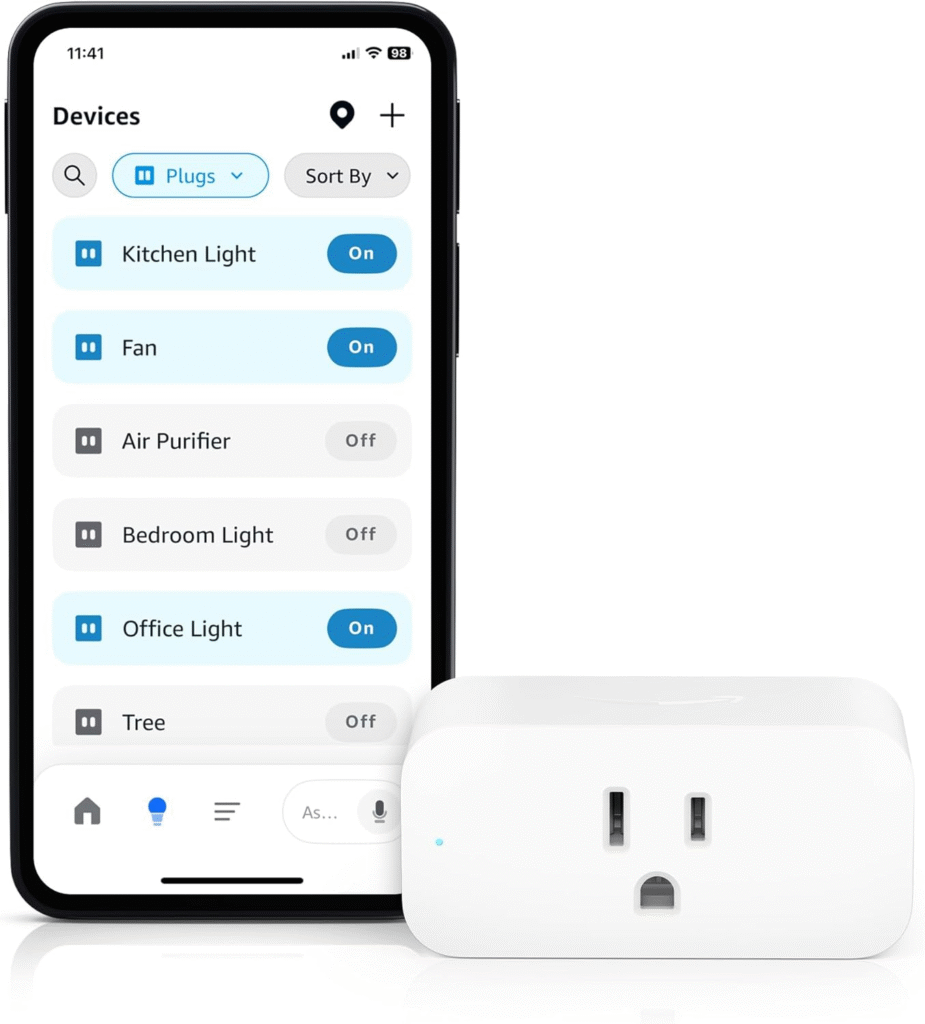
- Use the Devices tab to add new smart home devices.
- Select Add Device and choose the appropriate category (e.g., Lights, Plugs, Cameras).
- Follow the on-screen instructions to connect the device, often requiring you to sign into the manufacturer’s app or account[7][1].
5. Create Routines and Automations
Alexa’s Routines feature lets you automate actions across both Amazon and third-party devices:
- Go to Routines in the Alexa app.
- Set triggers (e.g., voice command, schedule, or device state).
- Add actions, such as controlling smart home devices, sending notifications, or interacting with third-party services.
Understanding Certification: Works with Alexa vs. Alexa Built-in
Third-party devices fall into two key categories:
- Works with Alexa (WWA): Devices certified to connect with Alexa but controlled by Alexa via skills or routines.
- Alexa Built-in (ABI): Devices with Alexa voice capabilities integrated directly into the hardware[4].
Look for these certifications when purchasing new devices to ensure compatibility and reliability.
Best Practices for Integrating Third-Party Apps with Alexa
1. Use Official Skills and Verified Devices
- Prefer skills and devices with WWA or ABI certification for optimal performance and security[4].
- Update apps and device firmware regularly.
2. Skill Developer Tips (For Businesses and Developers)
- Use Smart Home Skill API version 3 for the best user experience and up-to-date device state reporting[2].
- Accurately categorize devices using the displayCategory field so users can easily find and control them.
- Report device health proactively, enabling Alexa to keep users informed.
- Provide comprehensive manufacturerName, description, and additionalAttributes for clarity and easy identification.
- Ensure prompt and accurate responses to Alexa directives (ideally within 8 seconds).
3. Privacy and Security Considerations
- Review permissions requested by each skill or app before enabling.
- Regularly audit your enabled skills and connected devices in the Alexa app.
- Use strong, unique passwords for third-party accounts linked to Alexa.
Common Issues and Troubleshooting
- Device Not Discovered: Ensure the device is powered on and connected to Wi-Fi. Restart both Alexa and the third-party device.
- Skill Fails to Link: Double-check login credentials and internet connection. Some services require two-step authentication.
- Delayed Responses: Update the Alexa app and device firmware. Remove and re-add problematic skills if needed.
Alternatives to the Alexa App
If you prefer not to use the mobile app, Alexa can be set up via the Alexa website, offering similar functionality through your browser[5][9].
Expert Tips for a Seamless Alexa Experience
- Group devices (e.g., “Living Room Lights”) for easier voice control.
- Experiment with routines that blend multiple services (e.g., “Good Morning” routine that adjusts lighting, plays news, and starts your coffee maker).
- Teach Alexa new commands via interactive routines and smart home skills[6].
Conclusion
Integrating Alexa with third-party apps and devices empowers you to automate, streamline, and personalize your home and digital life. By following the steps and best practices outlined above, you’ll enjoy a reliable, secure, and truly smart Alexa experience. Whether you’re a homeowner, business owner, or developer, Alexa’s ecosystem offers endless possibilities for innovation and convenience.
Key Takeaways
- Download the official Alexa app for safe and easy setup.
- Enable and link third-party skills for expanded capabilities.
- Choose certified devices for optimal compatibility.
- Follow best practices for privacy, security, and reliability.