How to Set Up Alexa with Third-Party Apps: A Step-by-Step Guide for 2025
Integrating Amazon Alexa with third-party apps can transform your smart home experience, streamline daily routines, and unlock a world of hands-free convenience. Whether you want to control your lights, play your favorite music, or connect business tools, this guide covers everything you need to know about setting up Alexa with third-party apps in 2025.
Why Integrate Alexa with Third-Party Apps?
- Expanded Functionality: Access a wider range of services and devices beyond native Amazon options.
- Personalization: Tailor Alexa’s capabilities to fit your unique lifestyle, from home automation to productivity tools.
- Centralized Control: Manage smart home devices, calendars, music, and more with simple voice commands.
Getting Started: Prerequisites for Integrating Third-Party Apps
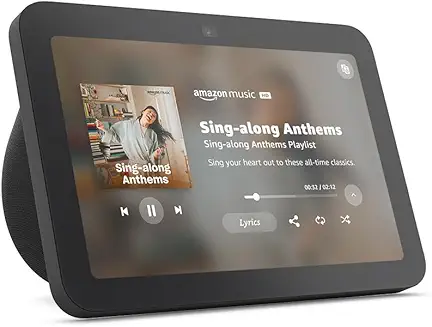
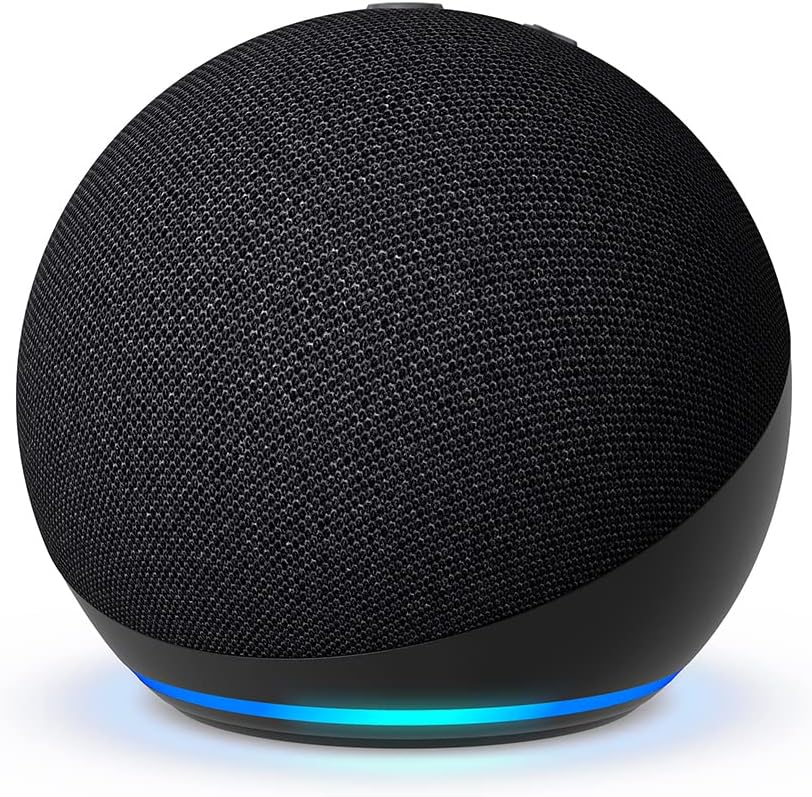
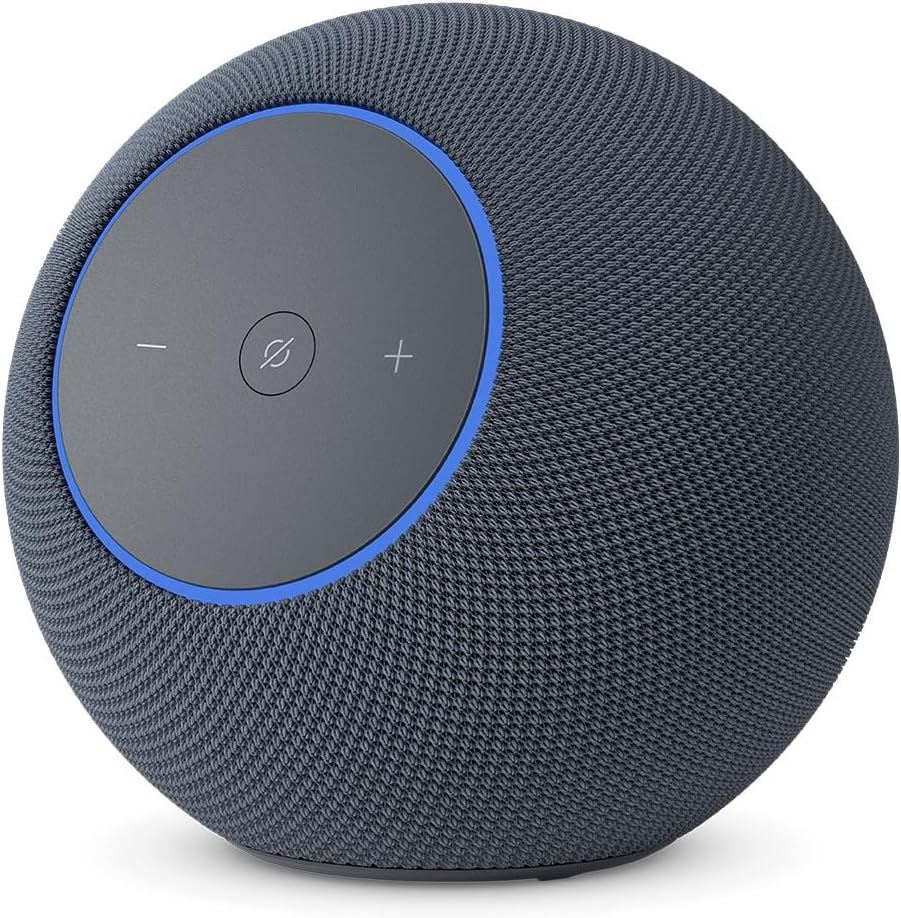
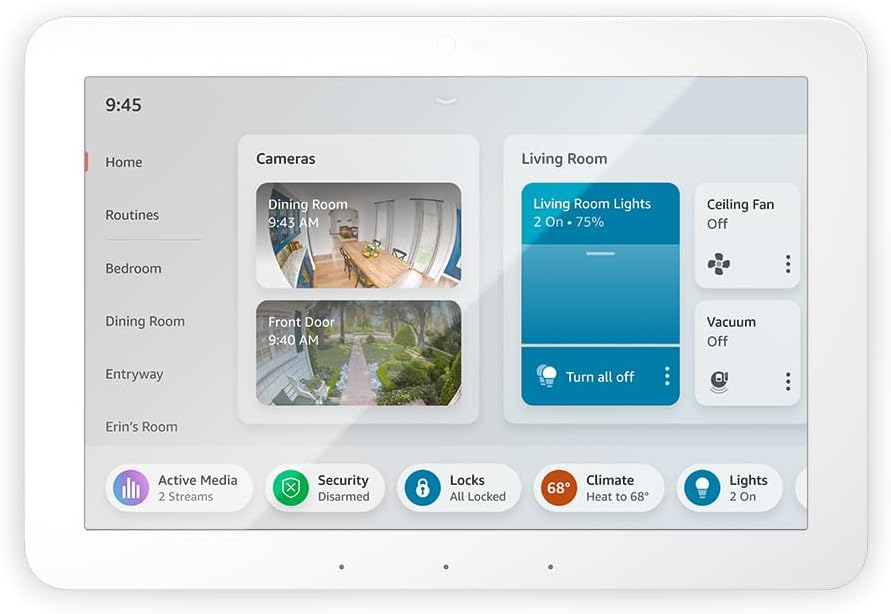
- Compatible Alexa Device: Ensure you have an Alexa-enabled device (Echo, Fire TV, etc.) or a third-party device that is Works with Alexa or Alexa Built-in certified.
Tip: Look for official certification badges to guarantee seamless integration[4]. - Amazon Account: Sign in with an active Amazon account.
- Alexa App: Download and install the Alexa app on your smartphone or tablet.
Note: For users outside the US, the app can be installed from your region’s app store without third-party APKs[3]. - Stable Wi-Fi Connection: Ensure your Alexa device and mobile device are connected to the same network[1].
Step-by-Step Guide: Setting Up Alexa with Third-Party Apps
1. Download and Set Up the Alexa App
- Go to your device’s app store (Google Play or Apple App Store).
- Search for and install the Amazon Alexa app.
- Open the app and sign in with your Amazon credentials[1][3].
- Register your Alexa-enabled device if you haven’t already.
2. Connect Alexa to Your Wi-Fi Network
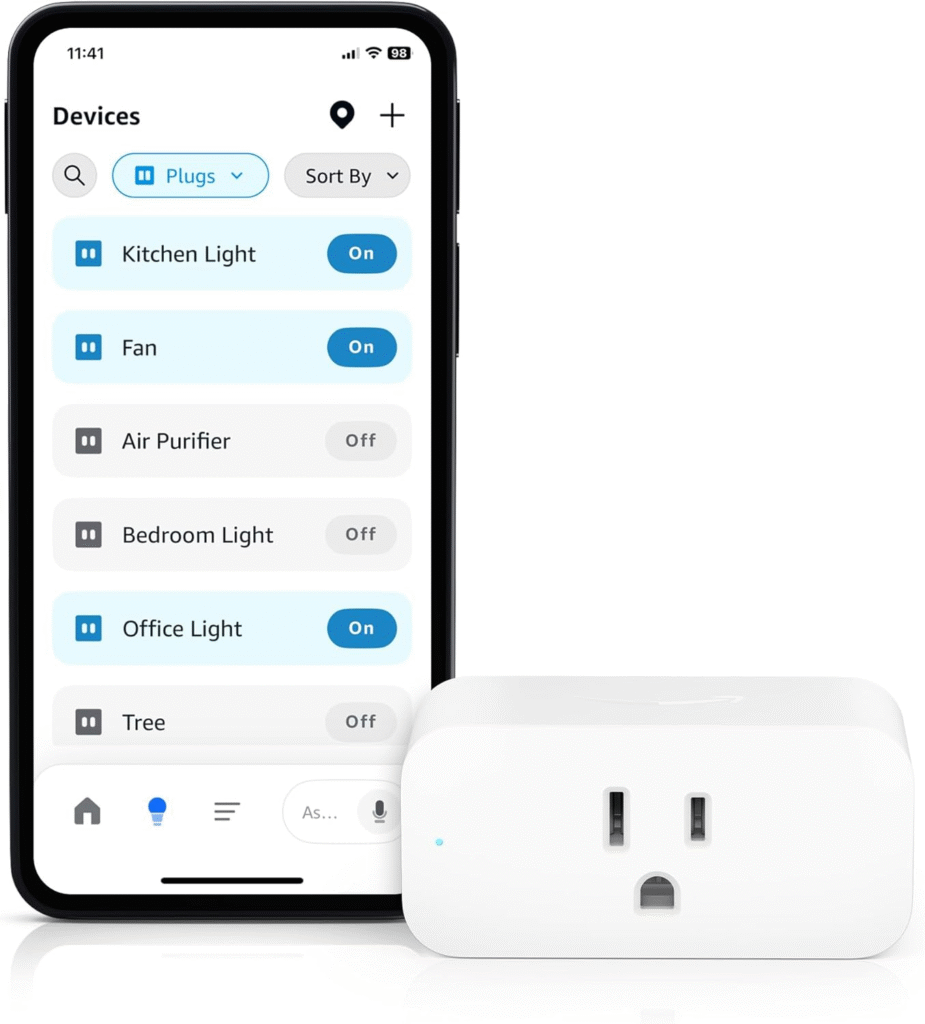
- In the Alexa app, tap Devices at the bottom menu.
- Select the + icon, choose your device type, and follow the on-screen instructions to connect to Wi-Fi[1].
- Confirm your device status shows as connected.
3. Enable Third-Party Skills (Apps) in Alexa
- In the Alexa app, tap More in the main menu.
- Select Skills & Games[13].
- Use the search bar or browse categories to find the third-party app or service you want to add.
- Tap the skill, then press Enable to Use.
- Follow any required account linking steps, such as logging into the third-party service.
4. Test Your Connection and Set Up Routines
- Try relevant voice commands (e.g., “Alexa, play Spotify”).
- For smart home apps, say “Alexa, discover devices” to sync new hardware.
- Set up custom routines by navigating to Routines in the Alexa app for automated actions involving third-party services.
Popular Third-Party Apps to Integrate with Alexa
- Music: Spotify, Apple Music, Pandora
- Smart Home: Philips Hue, TP-Link Kasa, Samsung SmartThings
- Productivity: Google Calendar, Todoist, Any.do
- Communication: Zoom, Skype
- Security: Ring, August Smart Locks
Best Practices for Seamless Integration
- Check Certification: Use devices and apps with Works with Alexa or Alexa Built-in certification for optimal reliability[4].
- Keep Everything Updated: Ensure both the Alexa app and third-party apps are running the latest versions for compatibility and security[1].
- Customize Device Names: Rename devices in the Alexa app for easier voice control and to avoid conflicts.
- Review Permissions: Regularly audit and manage permissions for third-party apps within the Alexa app settings.
- Use Routines: Combine multiple actions and apps into single voice commands for efficiency.
- Enable Two-Factor Authentication: Secure your Amazon account and linked third-party accounts for enhanced privacy.
Troubleshooting Common Issues
- Device Not Responding: Ensure your Alexa device and third-party hardware are on the same Wi-Fi network and powered on.
- Skill Not Working: Re-link the third-party account, check for app updates, or disable and re-enable the skill.
- Discovery Issues: Use “Alexa, discover devices” after setup. If the device isn’t found, restart both the Alexa and third-party device.
- Region Restrictions: Some skills or apps may be region-locked. Ensure your Amazon account and devices are set to the correct country/region[3].
Frequently Asked Questions
Can I set up Alexa with third-party apps without the Alexa app?
While the Alexa app provides the easiest setup experience, you can use the Alexa web portal for some functions if the app is unavailable[11]. However, app-based setup is generally more comprehensive.
How do I know if a device or app is compatible?
Look for Works with Alexa or Alexa Built-in logos on product packaging, websites, or within the Alexa app’s Skills & Games section[4].
Is it secure to link third-party apps with Alexa?
Yes, provided you use official skills, keep software updated, and enable security features like two-factor authentication for your accounts.
Conclusion
Setting up Alexa with third-party apps unlocks the true potential of your smart home and digital lifestyle. By following the steps and best practices outlined above, you can enjoy a seamless, secure, and highly personalized voice assistant experience. Stay updated with new skills and integrations to make life simpler, smarter, and more connected in 2025 and beyond.